
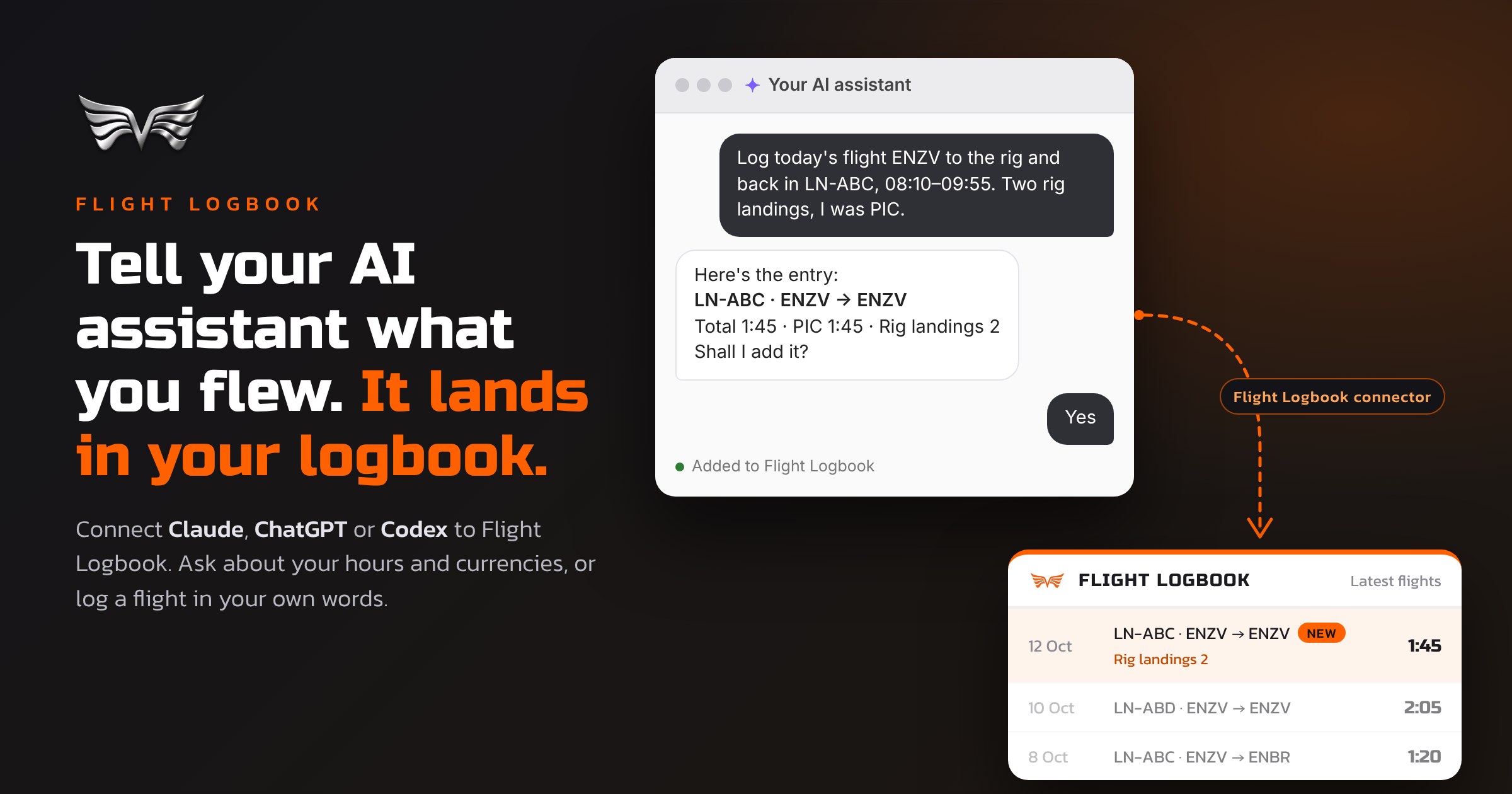
Talk to your logbook in your own words
Flight Logbook now connects to the AI assistant you already use: Claude, ChatGPT, or Codex and Claude Code in the terminal. Once it is connected, your logbook becomes something you can ask questions and give instructions in plain language.
- “How many hours did I fly last year, split by aircraft type?”
- “Am I current for night landings? When does it run out?”
- “When did I last fly with Anna?”
- “How much is left of my 30-day limit?”
- “Log yesterday’s flight ESSA–ESGG in SE-JKL, off block 08:00, on 09:05. I was PIC.”
The assistant reads the same data you see in the app: your flights, totals, aircraft, crew, currencies, limits and certificates. It answers from your own logbook, not from a guess.
You see every flight before it is saved
A logbook is a legal record, so the assistant never saves anything blindly. When you ask it to log a flight, it first works out the entry and shows it to you: date, aircraft, route, block times and how the time is split. Only when you say yes does it go into your logbook.
It fills in what follows from what you told it, the same way the form in the app does. The block time becomes total time, and if you were PIC or SIC that time follows. Night, IFR and the other times are never guessed: if they apply, you say so. If the new flight overlaps one that is already in your logbook, the assistant stops and asks you, because that is almost always the same flight logged twice.
Your own fields work too
Many pilots log things the standard columns do not cover: deck or rig landings, NVG time, hoist cycles, hood time. In Flight Logbook you can give your own fields any name you like under Settings, and the assistant knows those names.
So if you have named a field “Rig landings”, you can simply say “two rig landings” and they land in the right field. That matters: currencies that count your own fields stay correct when the assistant does the logging.
New aircraft and new crew members can be added the same way. Tell it you flew a new registration or with someone new, and it asks you to confirm before adding them.
What it cannot do, on purpose
The assistant can read your logbook and add flights, aircraft and crew. It cannot change or delete anything. Corrections are made in Flight Logbook, where you see exactly what you change. A mistake from an assistant should never be able to rewrite your history.
It also only ever sees your own logbook. There is no way for it to reach another pilot’s data, and the flights you share with crew stay as they are until you accept them in the app.
Privacy and control
When you use the assistant, the questions you ask and the parts of your logbook it reads to answer them are processed by the AI service you have chosen, under that service’s terms. Flight Logbook only gives it what it asks for, one question at a time, and only from your account.
You are in control the whole way. Every connected assistant is listed under Settings → AI Assistants, where you can disconnect it with one click, and it loses access immediately. If the assistant is ever given new abilities, you will be asked to approve them before it can use them.
How to connect your assistant
- Log in to Flight Logbook and open Tools → AI Assistants. The feature opens once you have logged your first flight.
- Choose your assistant. The page shows the steps for that one: Claude and ChatGPT connect with a login, Claude Code and Codex with a personal key.
- Approve the connection, and start asking.
Claude works as a custom connector. In ChatGPT it needs a paid plan with Developer mode, and on some plans ChatGPT can search your logbook but not yet add flights. The setup page always has the current details.
Try it after your next flight
The best way to see what it does is to use it once. After your next flight, open your assistant and tell it what you flew, the way you would tell a colleague. Check what it shows you, say yes, and it is in your logbook.
We would love to hear how you use it and what you would like it to do next. Leave a comment below or write to admin@flightlogbook.com.